Get Started
This guide walks you through installing and opening React File Nesting Explorer for the first time.
Prerequisites
React File Nesting Explorer works in any editor built on top of VS Code:
- VS Code
- Cursor
- Windsurf
- Any other VS Code-compatible IDE
If your editor supports VS Code extensions, it will work.
Step 1: Install the Extension
- Open your editor.
- Go to the Extensions view.
- Search for React File Nesting Explorer.
- Click Install.
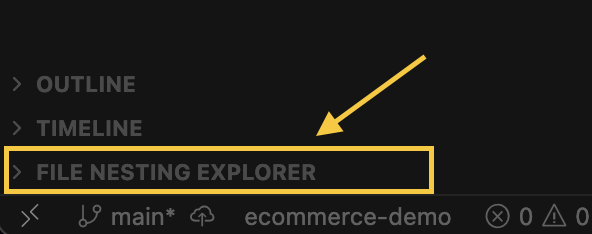
Step 2: Open the File Nesting Explorer Panel
After installation, you'll need to switch from the default Explorer view to the new one provided by the extension.
- Open the Explorer sidebar.
- Close the default Explorer panel if it's open.
- Scroll to the bottom of the Explorer views list.
- Open File Nesting Explorer panel.
Step 3: Start Using the Extension
At this point, React File Nesting Explorer is fully active.
You can start using its core functionality right away from the File Nesting Explorer panel.
To create a nested file:
- Select any React file (
.tsx,.jsx,.ts, or.js). - Right-click on the file.
- Choose New Nested File.
- Enter the file name in the input box.
That's it. The new file is automatically created inside the selected file and appears nested in the tree.
Your project structure starts reflecting your UI composition instantly.